
Google Analytics MCP
The Google Analytics MCP connects your AI client to Google Analytics 4 data analysis. Ask a question in natural language, and the tool builds a Google Analytics API query, fetches the data, and analyzes it before presenting the findings. Use it to investigate traffic, engagement, and other reporting questions supported by your GA4 data and the integration.
Table of Contents
Connect the Google Analytics MCP to your AI client and start asking questions about your GA4 data.
Available Tools & Use Cases
The Google Analytics MCP exposes one tool:
-
analyze_ga4_dataBuild a Google Analytics API query from your request, fetch the relevant data, and analyze it before presenting the results.
Required input:
query, a string containing your exact analysis request. Although optional in the schema, provide a query to clearly specify what you want to investigate.The AI client should pass your original request unchanged in
query. Include the reporting period, metrics, and breakdowns you want in your request where possible.Possible use cases include investigating traffic trends, comparing reporting periods, reviewing acquisition channels, and exploring page engagement.
Video Demo: Chat with Your Google Analytics Data
prototypr.ai powers Google Analytics chat with a fine tuned model built on the Google Analytics API. Watch the full video to learn how to prompt the GA4 MCP:
How to Connect Google Analytics MCP
Use an MCP client that supports remote server connections and the authentication required by this endpoint. Setup differs between clients; a JSON configuration used by a code editor is not a universal setup method for ChatGPT or Claude.
- Generate your API key. For deployments using prototypr.ai API-key authentication, log in to prototypr.ai and open API Keys.
- Confirm your Google Analytics connection. Ensure the integration has authorized access to the GA4 property you want to analyze. Follow your deployment's instructions for connecting Google Analytics and selecting the reporting property.
- Identify your user and workspace. If required by your deployment, have your user ID and workspace ID ready. A prototypr.ai workspace ID is not a GA4 property ID.
-
Add the remote server.
Replace
INSERT_GA4_MCP_SERVER_URLbelow with your Google Analytics MCP endpoint. Confirm the authentication headers with your server's setup documentation. -
Verify tool discovery.
Confirm that your client can discover
analyze_ga4_data. - Run an initial reporting request. Ask: “Show total users and sessions for the last 7 complete days. State the reporting dates and identify the GA4 property used, if available.”
For clients that accept an mcpServers configuration with remote URLs and custom headers, use this as a starting point. Supported fields vary by client. Replace the endpoint placeholder and confirm that the headers match your Google Analytics MCP deployment.
{
  "mcpServers": {
    "prototypr": {
      "url": "https://www.prototypr.ai/mcp/agents/ga4",
      "displayName": "Prototypr AI",
      "description": "Prototypr.ai research platform.",
      "icon": "https://www.prototypr.ai/static/img/ai_icon_32x32.png",
      "headers": {
        "Authorization": "Bearer INSERT_PROTOTYPR_AI_API_KEY",
        "X-User-Id": "INSERT_USER_ID",
        "X-Workspace-Id": "INSERT_WORKSPACE_ID"
      }
    }
  }
}
Security: Treat your API key and Google authorization credentials as secrets. Do not commit them to a repository or paste them into an AI conversation. Use your client's credential storage or environment-variable support where available. User and workspace IDs identify the requested context; they do not replace authorization to access Google Analytics.
How to Connect an MCP Server to the prototypr.ai MCP Client
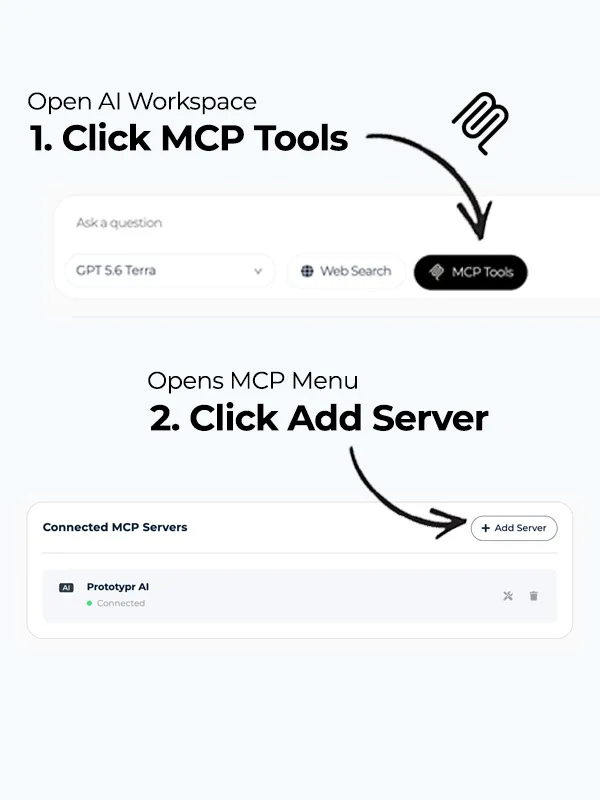
After you have completed the setup steps and replaced the configuration placeholders, copy the mcp.json above, navigate to your AI Workspace, and open MCP Tools. Then click Add Server as shown below.
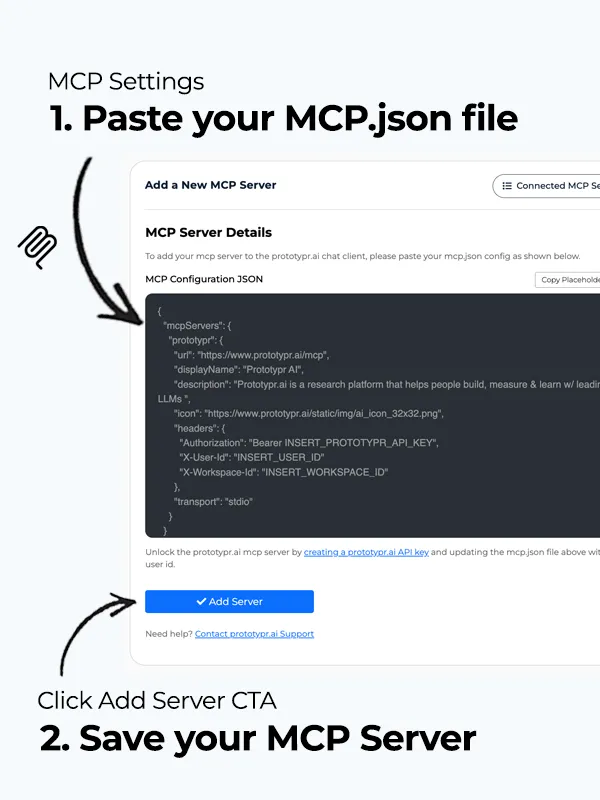
Paste the MCP JSON configuration into the server details field and click Add Server.
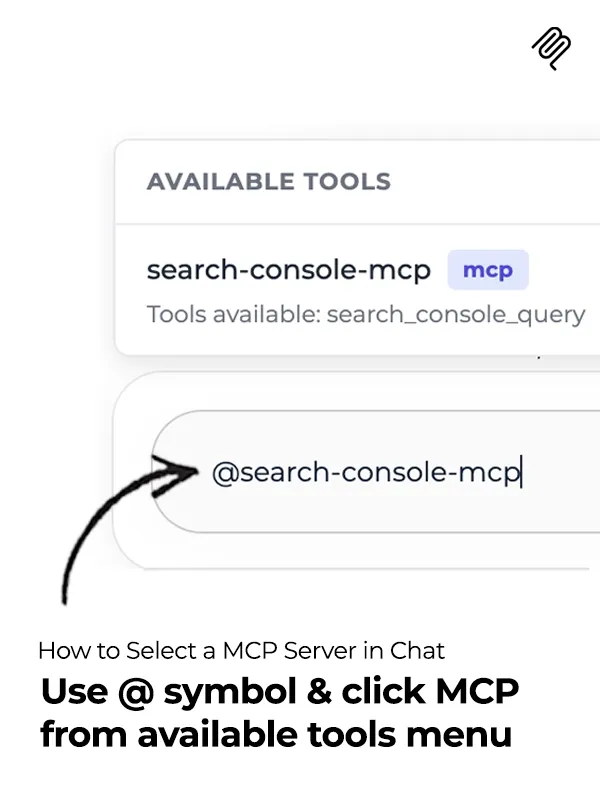
Start chatting with the MCP server by searching for it using the @ symbol at the start of your sentence, as shown below.
How to Connect an MCP Server to ChatGPT & Claude
If you'd like to bring this MCP into your own AI workflow using ChatGPT or Claude, please check out the following tutorials that explain how to connect an MCP server:
How to Use the Google Analytics MCP with Prompt Examples
Below are some prompts that demonstrate reporting questions you can ask the Google Analytics MCP. It's important to include a dimension, metric and timeframe when requesting data from this Google Analytics MCP. Filters are also accepted and encouraged to better segment your data.
How to Pull Trended Traffic Data
PROMPT: Please pull active users for the last 30 days and show this as a time series graph.
How to Review Acquisition Channels
PROMPT: Over the past 30 days, please pull active users by first user source medium and display as a table.
How to Pull Top Pages data
PROMPT: In the past 7 days, please pull active users by page path and display the top 10 pages users visit. Can you show this as a table?
How to Pull Events Data
PROMPT: In the last 30 days, can you pull active users by event name and display as a table? Can you only show the top 10 results?
Google Analytics MCP FAQ
Compatibility depends on the specific client experience, supported remote transport, and authentication options. The example configuration uses custom headers; not every client supports that configuration. Check your client's documentation and your server's authentication requirements before connecting.
No. The tool fetches data through a Google Analytics 4 API query, and does not specify support for GA4 real-time reporting.
Within prototypr.ai, you'll need to authenticate with your Google Analytics account. You can do so by visiting Analytics from within your AI Workspace and follow the steps to authenticate.
If you would like to see all of the steps required, you can follow this tutorial here: How to Connect Google Analytics to prototypr.ai
If you need support setting up the Google Analytics MCP in prototypr.ai, please reach out to the support team in the app. Have the connection error and relevant setup details ready, but do not share API keys or Google authorization credentials.