Building an AI Knowledge Base - A Practical Guide
LAST UPDATED: 2026-05-21
Building an AI knowledge base gives you the context an AI Assistant needs to understand your product, your data, and the decisions you are trying to make. Instead of starting every conversation from scratch, your AI can learn from the conversations you have, the analytics you connect, the experiments you run, the user experiences you save, and the feedback you collect.
And the best part is, you do not need to know how to code to build one. With a prototypr.ai Plus account, you can start bringing your data, documents, and product context together in one place so your AI has smarter answers grounded in real product data.
In this guide, we’ll help you build the foundation of your knowledge base around five core inputs: conversations, analytics, experiments, user experiences, and user feedback. By the end, your AI Growth Advisor will have enough context to help you analyze performance, remember decisions, connect experiments to outcomes, and recommend clearer next steps as your knowledge base grows.
Now let's get started!
Table of Contents
This guide will walk you through how to set up your first AI knowledge base by covering the following:
- What is an AI knowledge base?
- What are the benefits of building an AI knowledge base?
- Get Started Building Your AI Knowledge base
- Step 1: Saving conversations to Memory
- Step 2: Connect Google Analytics
- Step 3: Select your first KPI
- Step 4: Add your first growth hypothesis
- Step 5: Add a user experience into Memory
- Step 6: Create your first user feedback study
- Bonus: Export your knowledge base via API
- FAQ
What is an AI knowledge base?
An AI knowledge base is a centralized, structured collection of information that helps an AI system understand context, answer questions, and make more informed recommendations.
Unlike a traditional database that simply stores information, an AI knowledge base helps organize context in a way that makes relationships between different pieces of information easier for AI to understand. This allows AI to reason across connected context instead of only retrieving isolated facts. This is similar to the idea behind retrieval-augmented generation, where AI uses retrieved knowledge to produce more grounded and relevant responses.
In prototypr.ai, your AI knowledge base is designed to support product and growth decisions. It helps your AI Growth Advisor reason across your analytics reports, saved conversations, hypotheses, user experience context, and customer feedback.
The goal is to create a no-code, reusable decision layer that grows with you. As you add more context, your AI Growth Advisor can remember what you have tried, connect new signals to past decisions, and help you choose clearer next steps over time.
What are the benefits of building an AI knowledge base?
The biggest benefit of building an AI knowledge base is that your AI Growth Advisor can work with the same context your team uses to make product and growth decisions.
Without context, AI can only give general advice. With context, it can understand what users are doing, what they are seeing, what you are testing, and which KPIs you are trying to improve.
For example, you can connect Google Analytics, save a conversation about a retention problem, add a hypothesis, document an onboarding flow, and collect user feedback about that experience. Each piece of context makes your knowledge base more useful.
This helps your AI Growth Advisor move beyond reporting that a number went up or down. It can connect performance data to the product experience behind it, identify possible reasons for change, and help turn recommendations into testable growth hypotheses.
Over time, your knowledge base becomes a shared memory for your growth work. It helps you preserve important learnings, avoid repeating the same experiments, and build a clearer system for deciding what to improve next.
Get started building your AI knowledge base
Now that you have a better understanding about what an AI knowledge base is and its benefits, let’s walk through how to start building one in prototypr.ai.
The goal is to give your AI Growth Advisor enough useful context to understand your product, your data, your decisions, and what you are trying to improve.
You do not need to set everything up at once. Start with one saved conversation, one connected data source, one KPI, and one user experience. From there, your knowledge base will become more useful as you continue adding context over time.
If you need help setting up your personalized knowledge base, you can reach out to our support team inside the app.
Step 1: Save your first AI conversation to Memory
Saving conversations is one of the fastest ways to start building your AI knowledge base. Conversations often contain important context about who you are, what you are working on, what decisions you are considering, and what you want your AI Assistant to help you improve.
For your first saved conversation, its generally recommended to start simple. Introduce yourself, describe your role, explain what your product does, and share what you are hoping to get out of your AI knowledge base.
For example, you might tell your AI Growth Advisor what kind of product you are building, which growth goals matter most right now, what problems you are trying to solve, and where you would like better support making decisions.
Once you have completed that conversation, save it into Memory. This gives your AI Growth Advisor a useful starting point so future conversations can build on your goals, product context, and priorities instead of starting from scratch.
How to save a conversation into memory
To save a conversation, open an AI conversation inside prototypr.ai and click the save button in the top right corner of the chat interface.

The save conversation cta in the top right
After a conversation is saved, prototypr.ai creates a structured summary that becomes part of your AI Memory. Saved conversation summaries are designed to capture the most important parts of the discussion in a format your AI can reference later.
A saved conversation summary may include the overall topic or goal, your initial query or challenge, key insights from the AI Growth Advisor, decisions or agreements made, actionable next steps, and any new hypotheses or ideas that were proposed.
For example, if you worked with your AI Growth Advisor on improving onboarding, the saved summary might capture that the goal was to improve signed-up user retention, that the main challenge was simplifying the onboarding flow, that the AI recommended a Research, Build, Measure, Learn framework, and that the agreed next step was to test a revised onboarding experience against Day 1 retention.
These summaries are useful because they preserve the reasoning behind your decisions, not just the final answer. Over time, this helps your AI Growth Advisor understand what you have tried, what you learned, and which ideas should be revisited or avoided.
Reviewing saved conversations in memory
You can also review and edit saved conversation summaries. This is helpful if you notice that the AI added something incorrectly, missed an important detail, or summarized a decision in a way that does not match your intent. Editing Memory helps steer your AI by improving the quality of the context it uses in future conversations.
To find your saved conversation summaries, click the Memory icon in Test Center.
This opens your AI Memory menu. From there, scroll down to the saved conversation summaries section to review or edit what has been saved.
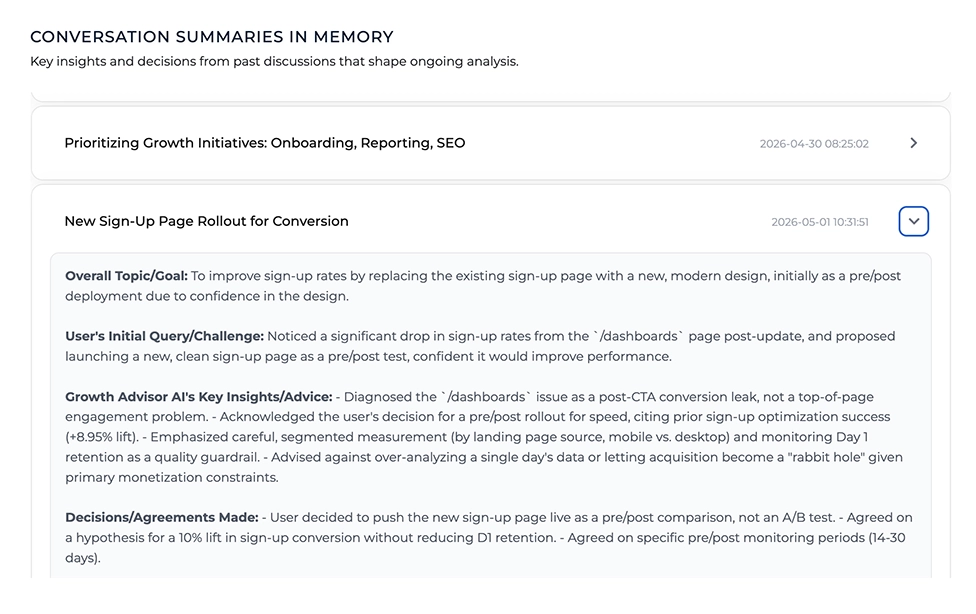
An example of a saved conversation summary
Step 2: Connect Google Analytics
After saving your first conversation to Memory, the next step is to connect Google Analytics. This gives your AI knowledge base a trusted source of product performance data, so your AI Growth Advisor can understand what users are doing across your website or product.
We have a separate setup guide that walks through the full Google Analytics connection process, so we will not duplicate those instructions here. If you have not connected Google Analytics yet, start with this guide: How to connect Google Analytics to prototypr.ai.
Once Google Analytics is connected, you can start to organize your data around four lifecycle categories: acquisition, engagement, retention, and monetization. This makes it easier to understand where users are coming from, what they are doing, whether they are returning, and how effective your monetization initiatives are.
These lifecycle reports help power your AI Growth Advisor inside Test Center. Instead of only looking at raw analytics tables, you can review performance through a product growth lens and ask better questions about what changed, why it may matter, and identify opportunities around what to do next.
Advanced Dashboard Generation and Google Analytics MCP
Your connected Google Analytics data also powers AI dashboard generation. This allows you to generate reports and dashboards based on your GA4 data, then use your AI Growth Advisor to interpret the results in the context of your goals, experiments, user experiences, and saved conversations.
If you want to query GA4 metrics directly using natural language inside Test Center, you can also connect to our custom Google Analytics MCP server. This makes GA4 metrics available to your AI conversations, so you can ask questions about your analytics data and save useful analysis back into Memory as part of your conversation summaries.
To learn how to set this up, see: How to connect the Google Analytics MCP.
One of our guiding principles is that you stay in control of what gets saved to your AI Knowledge base. prototypr.ai does not save conversation context into Memory unless you choose to save it. This decision leads to higher quality curated content. Saved conversation summaries can also be reviewed, edited, or deleted, so you can control what your AI Growth Advisor remembers and uses in future analysis.
Step 3: Select your first Lifecycle KPI
After connecting Google Analytics, the next step is to choose the KPIs you want your AI Growth Advisor to pay attention to.
Inside Test Center, scroll down to the section called Product KPI Trends. In the top right of that section, click New KPI.

Select NEW KPI to start the process of adding a kpi to Test Center
A modal will appear asking you to describe your KPI. Start typing the metric you want to track, then select the closest match from the autocomplete options.
Next, choose the lifecycle category that best matches the KPI: acquisition, engagement, retention, or monetization.
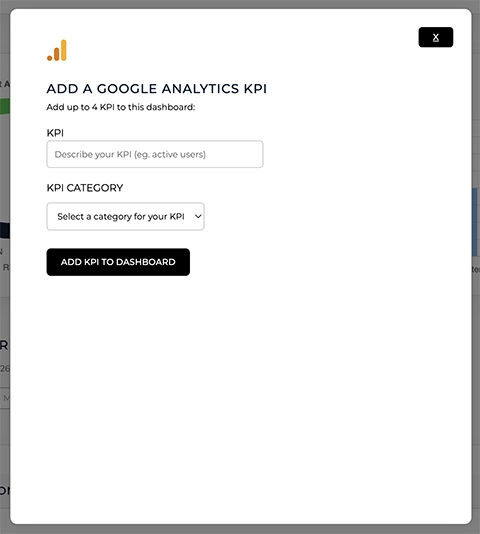
Add a new Google Analytics KPI to Test Center + Memory
Once your KPI and lifecycle category are selected, click Add KPI to Dashboard.
Your new KPI will now appear on your dashboard. Each KPI card includes a time series chart so you can monitor performance over time. You may also see relevant experiments surfaced above the chart based on the lifecycle category you selected.
You can repeat this process until you have added up to five KPIs. We recommend starting with one or two important KPIs first, then adding more once your knowledge base becomes more mature.
Step 4: Add your first growth hypothesis
After selecting your first KPI, the next step is to add a growth hypothesis. A hypothesis helps your AI Growth Advisor understand what you are trying to improve, what change you want to test, and why you believe it may affect performance.
There are two ways to add a new experiment or hypothesis to Test Center.
Option 1: Add an experiment manually
Inside Test Center, scroll to the Experiments Summary section near the top of the page. Click the New Experiment button.
A modal will open where you can describe your hypothesis or experiment idea. Once submitted, your AI Growth Advisor will generate a test plan and save it inside Test Center.
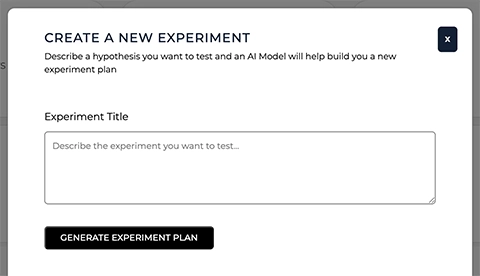
Add a new experiment to the AI Knowledge base
A simple hypothesis structure you can use is: If we make this change, then this KPI will improve by X%, because this user behavior or friction point should change.
For example: If we simplify the onboarding CTA, then we will improve the % of users starting onboarding by 10%, because the copy is more aligned with user outcomes.
Option 2: Create an experiment with the prototypr.ai MCP
You can also create experiments directly from AI chat by installing the prototypr.ai MCP server. This lets your AI Assistant create and save structured test plans into Test Center from a conversation.
To learn how to install it, see the prototypr.ai MCP documentation
Once the MCP is installed, open the chat input and type @prototypr, then describe the test plan you want to create.
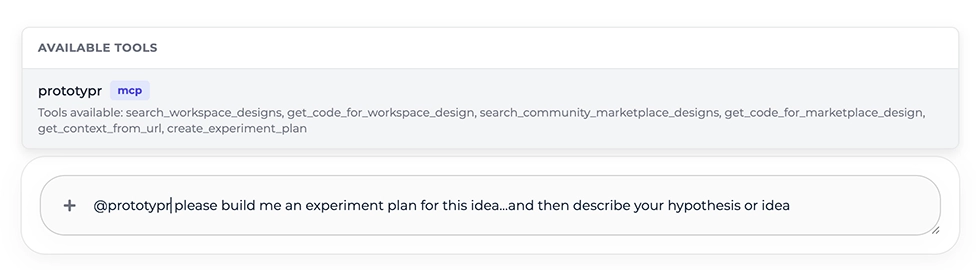
using the prototypr.ai mcp tool to create a new experiment
For example, you could write: @prototypr please build me an experiment plan for this idea...and then describe your hypothesis or idea
Whether you add the experiment manually or through the MCP, the goal is the same: document what you are testing so your AI knowledge base can connect your hypotheses, product changes, KPI movement, and experiment outcomes over time.
Step 5: Add a user experience into Memory
Adding a user experience into Memory helps your AI Growth Advisor understand what users are actually seeing. This can include a landing page, onboarding flow, checkout page, dashboard, product screen, or any other experience you want your AI to reference later.
Inside Test Center, click the brain icon in the side menu to open your AI Memory menu.
From the AI Memory menu, click Upload UX into Memory.
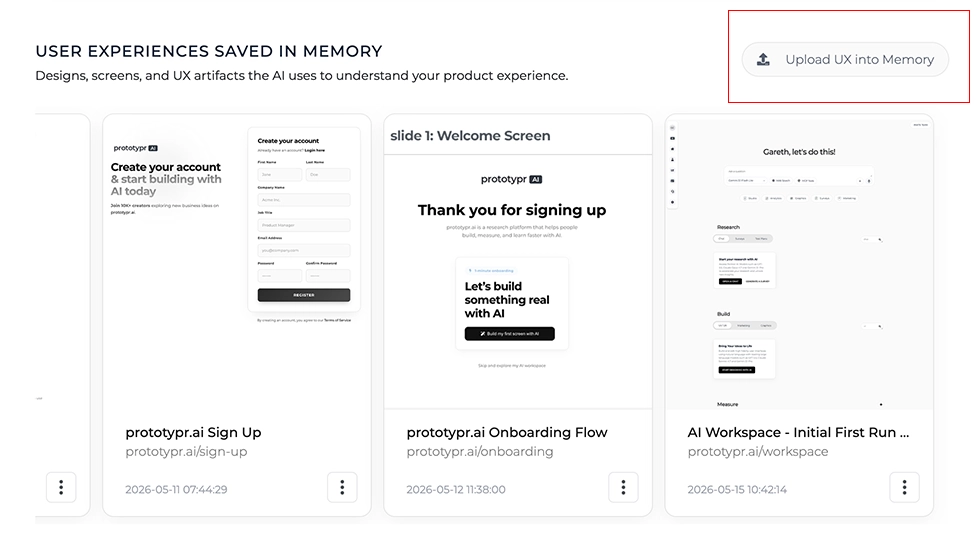
UX in Memory Menu + CTA to add a new one into memory
A new menu will open where you can upload an image of the experience, give it a name, and add the URL for the page or screen you want to document.
After uploading the image and adding the details, click Analyze Image. prototypr.ai will generate an analysis document that describes the experience, its value proposition, target audience, UX patterns, potential friction, and relevant growth recommendations.
Before saving, you can review and edit the generated analysis. Once it looks accurate, click Save as Context to add it to Memory.
This saved UX context can then be used by your AI Growth Advisor when analyzing KPIs, reviewing experiments, or helping you decide what to improve next.
If the experience changes or becomes outdated, you can return to the AI Memory menu and delete it at any time.
Step 6: Create your first user feedback study
At the bottom of Test Center, you can add feedback from a prototypr.ai survey you have launched into market. This helps your AI Growth Advisor understand what users are saying alongside what your analytics data shows.
If you already have a survey with responses, you can select it from the feedback section at the bottom of the Test Center report. If you do not have a survey yet, you can create one inside your AI Workspace.
In your AI Workspace, click the survey link to open AI Surveys.
AI Surveys lets you create short surveys with up to five questions. These are ideal for collecting focused feedback about a specific product experience, landing page, onboarding flow, checkout page, or feature.
To create a survey, describe what you want in natural language. For example, you could write: Create a 2-question NPS survey for users who tried prototypr.ai Studio.
Once the survey is generated, open the save menu and save it. After the survey has been saved, you can publish it by clicking the publish link.
After your survey is live and responses start coming in, return to Test Center and scroll to the feedback section at the bottom of the report. Select the survey you want to add to your knowledge base.
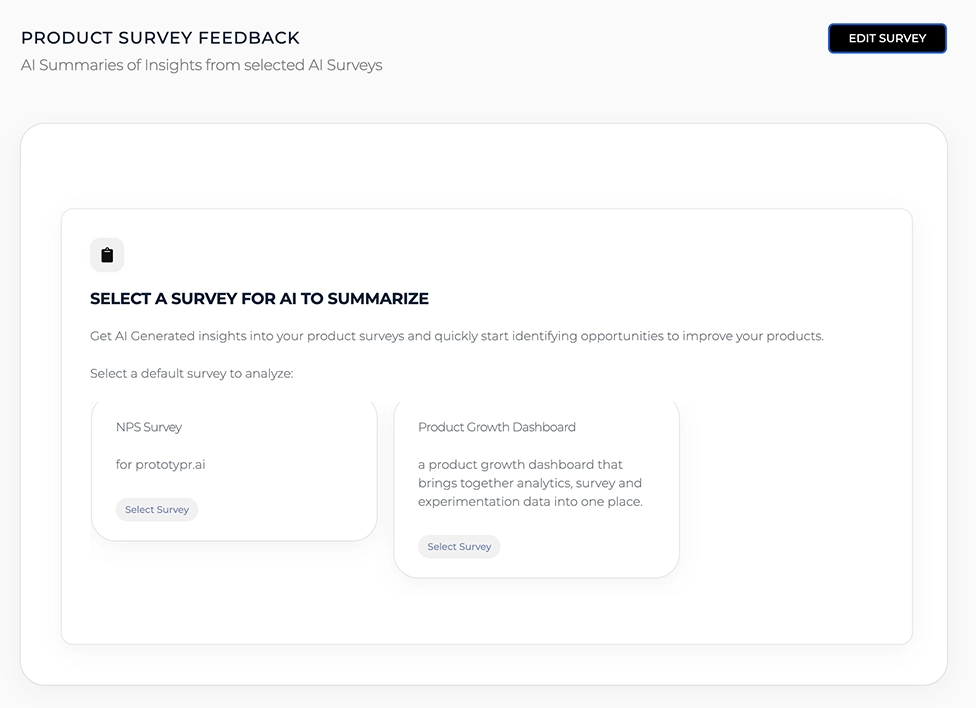
Selecting a survey to be summarized for the AI Knowledge base
Once selected, prototypr.ai will generate an AI summary of the survey results. This summary is automatically stored in Memory so your AI Growth Advisor can reference user feedback in future analysis and recommendations.
If you need to update the survey later, click the Edit Survey CTA in that section.
That’s it. Your first feedback study is now part of your AI knowledge base.
Bonus: Export your AI knowledge base via API
Once you start saving conversations, analytics context, experiments, user experiences, and feedback into Memory, your AI knowledge base becomes a reusable source of context.
With the prototypr.ai API, you can export your AI Memory and use it in other AI workflows, agents, reporting systems, or internal tools. This allows you to bring the same product and growth context into other places where your team works with AI.
For example, you could use your exported Memory to give another AI agent more context about your product goals, recent experiments, user feedback, KPI trends, or strategic priorities.
To use the AI Memory API, you will need to generate a developer API key from your prototypr.ai account. Once you have a key, you can request your agent memory using the API endpoint below.
You can find the full API documentation here: AI Agent Memory API documentation.
Conclusion: Your AI knowledge base is now ready to grow!
You now have the foundation of an AI knowledge base inside prototypr.ai. By saving conversations, connecting Google Analytics, choosing KPIs, documenting hypotheses, adding UX context, and collecting user feedback, your AI Growth Advisor has more of the context it needs to support better product and growth decisions.
You do not need to build everything at once. Start small, keep adding useful context, and let your knowledge base become more valuable over time. The more clearly you document what you are trying to improve, what you are testing, and what you are learning, the more useful your AI Growth Advisor becomes.
AI Knowledge Base FAQ
An AI Knowledge Base is a structured collection of context that helps an AI system understand your product, data, decisions, experiments, user experiences, and feedback. In prototypr.ai, your AI Knowledge Base helps your AI Growth Advisor provide more relevant, context-aware recommendations over time.
An AI Knowledge Base is useful for product teams, growth teams, founders, marketers, analysts, and UX researchers who want AI to understand their product, users, metrics, experiments, and decisions. It is especially helpful for teams that want AI recommendations grounded in their own trusted context instead of generic advice.
Product and growth teams use AI knowledge bases to give AI more context about what they are trying to improve. This can include KPI trends, experiment plans, user feedback, onboarding flows, landing pages, checkout experiences, and past decisions. With this context, AI can help teams analyze performance, identify possible friction, generate hypotheses, and decide what to test next.
The AI Knowledge Base features described in this guide are available with prototypr.ai Plus, which is a paid subscription at $29/month. Plus includes access to features that help you save AI conversations, connect analytics, create KPIs, document hypotheses, upload UX context, summarize survey feedback, and build a reusable memory layer for your AI Growth Advisor.
Your AI Knowledge Base is designed to be private to your account and workspace. prototypr.ai does not train models on your saved AI Knowledge Base. You also stay in control of what gets saved to Memory. Conversation summaries and other context are only saved when you choose to save them, and you can review, edit, or delete Memory items at any time.
Yes. You can export your AI Memory using the prototypr.ai API. This lets you bring your saved product and growth context into other AI workflows, agents, reporting systems, or internal tools. This is useful if you want other AI agents to understand your product goals, KPI trends, experiments, user feedback, or saved strategic context.
No. You can build your first AI Knowledge Base in prototypr.ai without code. You can save conversations, connect Google Analytics, select KPIs, add hypotheses, upload UX context, and create surveys through the product interface. The API is optional for teams that want to use their AI Memory in more advanced workflows.
Your AI Knowledge Base can include saved AI conversation summaries, Google Analytics reports, selected KPIs, growth hypotheses, experiment plans, user experience analysis, and survey feedback. You can also connect additional sources and MCP tools over time, such as Google Search Console, Stripe, SendGrid, or Google Analytics MCP, depending on what context you want your AI Growth Advisor to use.
Uploading UX context helps your AI Growth Advisor understand what users are actually seeing. For example, if you are analyzing sign-up rate, onboarding completion, checkout intent, or retention, a screenshot or page analysis gives your AI more context about the experience behind the numbers. This helps connect product performance data to possible UX friction and better experiment ideas.