
prototypr.ai MCP
The prototypr.ai MCP connects your AI client to workspace designs, the community design marketplace and search webpage context. Use it to find relevant designs, retrieve their HTML, CSS, and JavaScript code, and research webpage urls.
Table of Contents
Connect the prototypr.ai MCP to your AI client and start exploring designs, gathering context, and planning experiments.
Available Tools & Use Cases
The prototypr.ai MCP exposes six tools:
-
search_workspace_designsSearch for designs in your prototypr.ai workspace by title or description. Use this to find a relevant design before requesting its code.
Required input:
query. -
get_code_for_workspace_designRetrieve the HTML, CSS, and JavaScript code for a specific design in your prototypr.ai workspace using its unique design ID.
Required input:
design_id.A workspace design ID is the unique identifier for the design, such as
430dc4d45bb1441e78edc786a820932c7. -
search_community_marketplace_designsSearch for designs in the prototypr.ai community marketplace by title or description. Use this to discover examples relevant to the page, component, or interface you want to explore.
Required input:
query. -
get_code_for_marketplace_designRetrieve the HTML, CSS, and JavaScript code for a specific design in the prototypr.ai community marketplace.
Required input:
design_id.For marketplace designs, use the design's URL slug as the ID, such as
minimalist-product-landing-page-2324. -
get_context_from_urlFetch and extract textual context from a webpage, taking your specific request or goal into account. Use this to gather information that can inform design discussions, content decisions, or experiment planning.
Required inputs:
url,user_request.Provide the full webpage URL and explain what you want to learn from its content. This tool uses the Gemini context url tool and provides a summary of the page requested and not full source code.
How to Connect prototypr.ai MCP
Use an MCP client that supports remote server connections and the authentication required by this endpoint. Setup differs between clients; a JSON configuration used by a code editor is not a universal setup method for ChatGPT or Claude.
- Generate your API key. Log in to prototypr.ai and open API Keys.
- Identify your user and workspace. Have your user ID and the workspace ID you want to access ready. The workspace ID is the workspace where your designs reside and where you want to create experiment plans.
-
Add the remote server.
Use
https://www.prototypr.ai/mcpand configure the authentication headers below using your client's supported setup method. - Verify tool discovery. Confirm that your client can discover the six tools listed above.
- Run a read-only test. Ask: “Search my connected workspace for designs with pricing in their title or description.”
For clients that accept an mcpServers configuration with remote URLs and custom headers, use this as a starting point. Supported fields vary by client.
{
  "mcpServers": {
    "prototypr": {
      "url": "https://www.prototypr.ai/mcp",
      "displayName": "Prototypr AI",
      "description": "Prototypr.ai research platform.",
      "icon": "https://www.prototypr.ai/static/img/ai_icon_32x32.png",
      "headers": {
        "Authorization": "Bearer INSERT_PROTOTYPR_AI_API_KEY",
        "X-User-Id": "INSERT_USER_ID",
        "X-Workspace-Id": "INSERT_WORKSPACE_ID"
      }
    }
  }
}
Security: Treat your API key as a secret. Do not commit it to a repository or paste it into an AI conversation. Use your client's credential storage or environment-variable support where available. User and workspace IDs identify the requested context; they do not replace authorization.
How to Connect an MCP Server to the prototypr.ai MCP Client
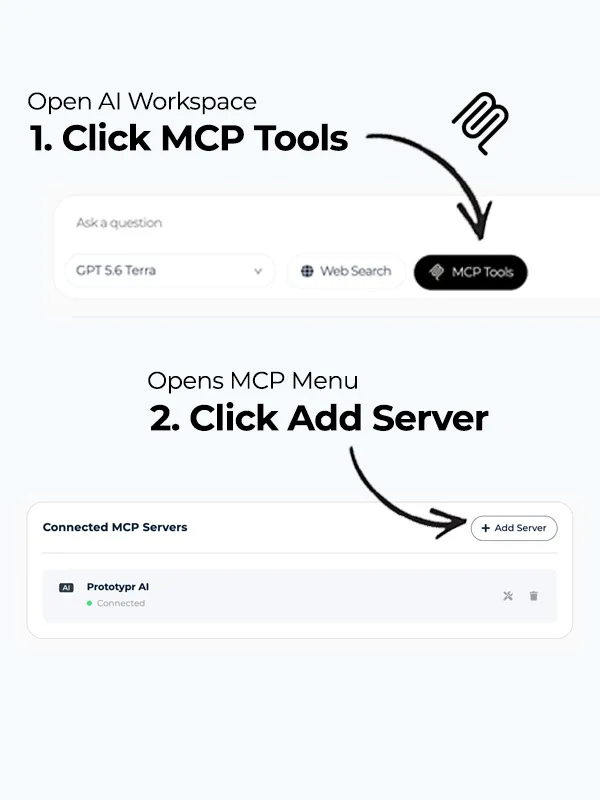
After you have completed the steps above and generated an API key, copy the mcp.json configuration above, navigate to your AI Workspace, and open MCP Tools. Then click Add Server as shown below.
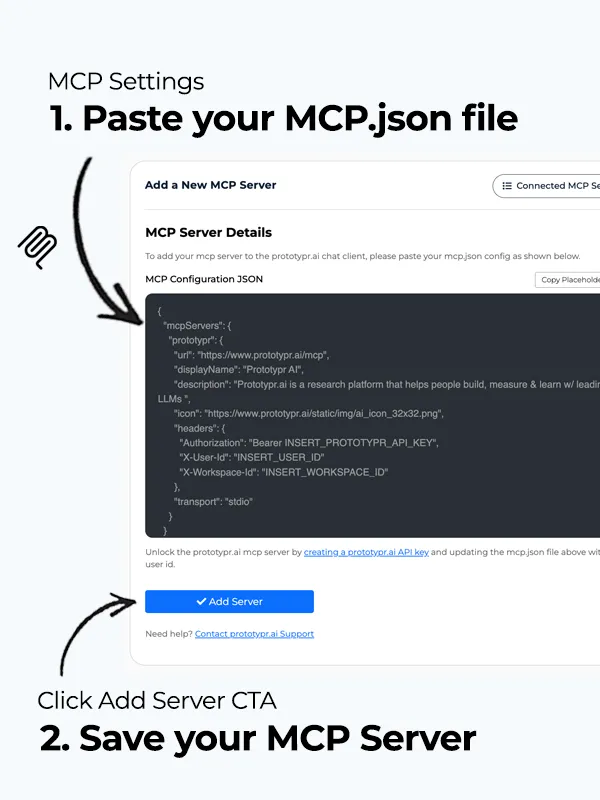
Paste the MCP JSON configuration into the server details field and click Add Server.
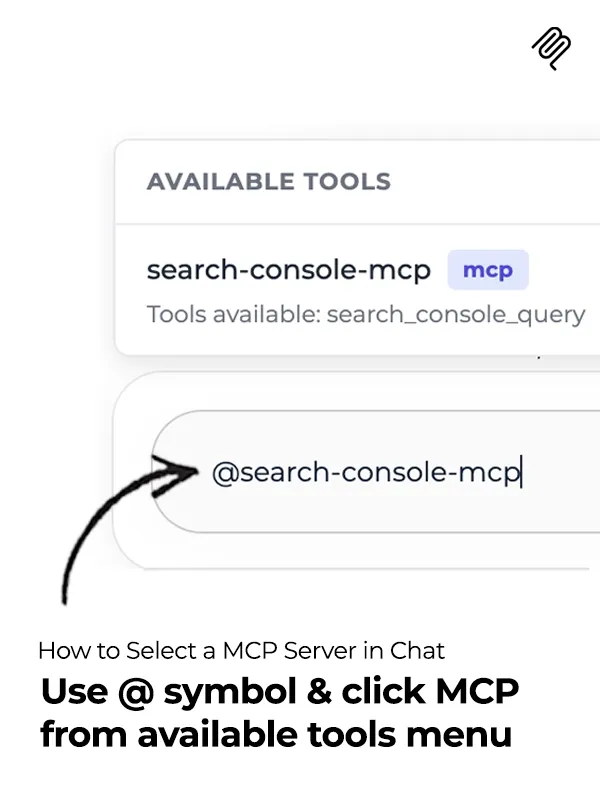
Start chatting with the MCP server by searching for it using the @ symbol at the start of your sentence, as shown below.
How to Connect an MCP Server to ChatGPT & Claude
If you'd like to bring this MCP into your own AI workflow using ChatGPT or Claude, please check out the following tutorials that explain how to connect an MCP server:
How to Use the prototypr.ai MCP with Prompt Examples
Below are some simple prompts that demonstrate how to use the prototypr.ai MCP.
How to Search Designs in Your Workspace
PROMPT: Please search my prototypr.ai workspace for designs with pricing in their title or description and return their ids and titles.
How to Retrieve Code for a Workspace Design
PROMPT: Please retrieve the complete HTML, CSS, and JavaScript for my workspace design INSERT_DESIGN_ID.
How to Search the Community Design Marketplace
PROMPT: Search the prototypr.ai community marketplace for minimalist product landing pages. Summarize the relevant matches and include their design slugs if available.
How to Retrieve Code for a Marketplace Design
PROMPT: Please retrieve the complete HTML, CSS, and JavaScript for marketplace design INSERT_MARKETPLACE_DESIGN_SLUG.
How to Gather Context from a Webpage URL
PROMPT: Please visit the following page https://example.com/product-page and help me understand how this company positions its product and services.
prototypr.ai MCP FAQ
Compatibility depends on the specific client experience, supported remote transport, and authentication options. This endpoint's example configuration uses custom headers; not every client supports that configuration. Check your client's documentation before connecting. For more details about connecting custom MCPs to Claude or ChatGPT, please check out the tutorials below:
Workspace designs use a unique design ID, such as 5e0c4d45bb1441e78edc786a82097ac7. Marketplace designs use the URL slug, such as minimalist-product-landing-page-2324. Use the appropriate identifier when retrieving the code for a specific design.
If you need support setting up the prototypr.ai MCP, please feel free to reach out to the support team in the app.